


Filtri
Ordina: In primo piano


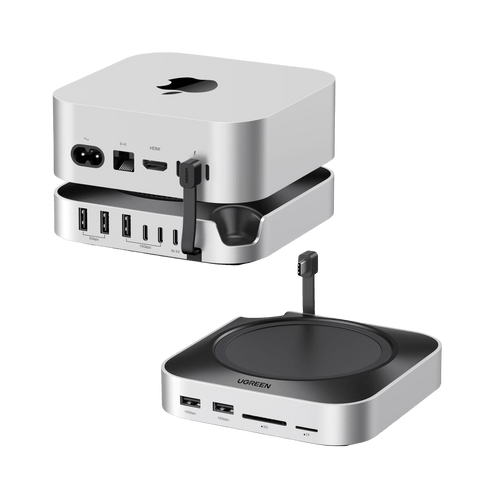


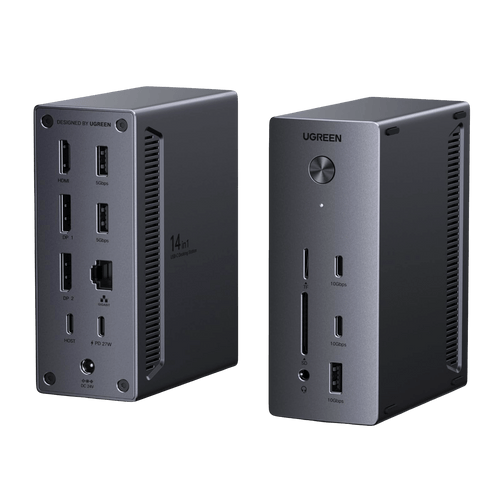
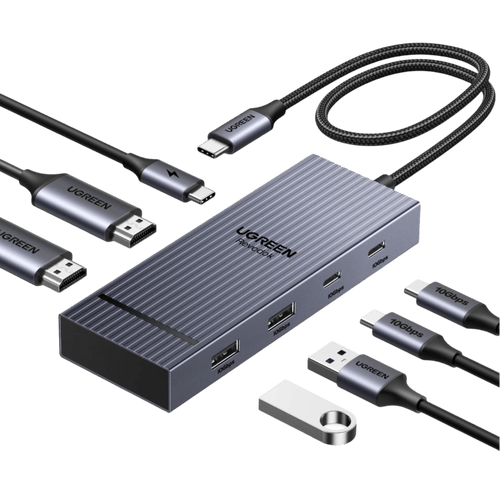
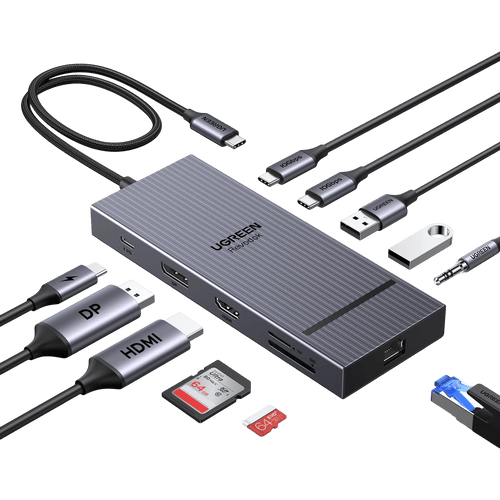
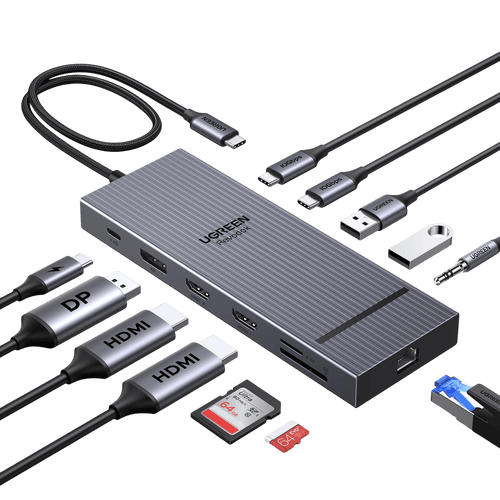


Numero e tipo di porte

Requisiti di alimentazione

Esigenze di trasferimento dati

Perché scegliere gli hub USB UGREEN

FAQ About USB Hub
A USB hub is a device that expands the number of USB ports available on a computer or other electronic device. It allows multiple USB devices to be connected to a single USB port on the host device. Essentially, a USB hub acts as a junction point, allowing users to connect various peripherals such as keyboards, mice, printers, external hard drives, and more to their computer or device. Here are some key functions and features of USB hubs:
1. Expansion of USB Ports: The primary function of a USB hub is to provide additional USB ports beyond what the host device offers. This allows users to connect multiple USB devices simultaneously.
2. Data Transfer: USB hubs facilitate data transfer between the connected devices and the host device. Data can be transferred at various speeds depending on the USB standard supported by the hub (e.g., USB 2.0, USB 3.0, USB 3.1, etc.).
3. Power Distribution: Some USB hubs also provide power to connected devices, particularly useful for devices that require power to operate, such as external hard drives or smartphones. These hubs often come with dedicated power adapters to supply sufficient power to all connected devices.
4. Plug-and-Play Convenience: USB hubs are typically plug-and-play devices, meaning they can be connected to the host device without requiring any additional software installation. Once connected, the host device should recognize the hub and any devices connected to it.
5. Portability: USB hubs come in various sizes and form factors, including compact and portable designs, making them convenient for use with laptops or other mobile devices that have limited built-in USB ports.
Whether you should get a USB 2.0 or USB 3.0 hub depends on your specific needs and the devices you plan to connect to it. Here are the main differences between USB 2.0 and USB 3.0:
1. Speed: USB 3.0 offers significantly faster data transfer speeds compared to USB 2.0. If you frequently transfer large files or use high-speed peripherals such as external hard drives or flash drives, a USB 3.0 hub may be more suitable for your needs.
2. Compatibility: USB 2.0 hubs are backward compatible with USB 3.0 and USB 2.0 devices, but they will operate at the slower USB 2.0 speeds when connected to a USB 2.0 port. USB 3.0 hubs, on the other hand, may not be fully compatible with older USB 2.0 devices, although they will still work at USB 2.0 speeds.
3. Future-proofing: USB 3.0 is becoming increasingly prevalent in newer devices, so investing in a USB 3.0 hub may provide better future-proofing. It offers faster data transfer speeds and is likely to be more compatible with upcoming devices and peripherals.
4. Price: USB 3.0 hubs may be slightly more expensive than USB 2.0 hubs due to the advanced technology and faster speeds. Consider your budget and whether the extra cost is justified by the benefits of USB 3.0.
In summary, if you prioritize speed and future-proofing, a USB 3.0 hub would be the better choice. However, if you mainly use older USB 2.0 devices or have budget constraints, a USB 2.0 hub may suffice for your needs. Click to read more USB 2.0 vs. 3.0 comparisons;
When selecting a USB hub for your computer setup, consider these key factors to ensure it fits your needs:
1. Number of Ports: Determine how many USB devices you need to connect at once and choose a hub with enough ports for all of them, including any potential future additions.
2. USB Standard: Decide between USB 2.0 and USB 3.0 based on compatibility with your devices and desired transfer speeds. USB 3.0 offers faster data transfer rates.
3. Data Transfer Speed: If you regularly transfer large files or use high-speed devices like external SSDs, opt for a USB 3.0 hub for quicker data transfer.
4. Power Requirements: Consider if your devices need power from the hub or have their own source. Choose a hub with sufficient power output for power-hungry devices.
5. Compactness and Portability: If you're frequently on-the-go or have limited desk space, choose a compact, lightweight hub for easy portability.
6. Build Quality: Look for hubs made from durable materials with reliable connectors to ensure stable connections and longevity.
7. Additional Features: Some hubs offer extra features like card readers or charging capabilities. Determine if these features would be useful for your setup.
8. Price: Set a budget and compare hubs within that range, considering features and quality.
Yes, a USB hub can be used to connect multiple devices without necessarily sacrificing performance, provided that the hub itself is of good quality and meets the necessary specifications for the connected devices. Here are some key points to consider:
1. Power Supply: Ensure the USB hub has its own power adapter to provide adequate power to connected devices, maintaining performance.
2. USB Standard: Opt for a USB hub that supports a higher standard like USB 3.0 or USB 3.1 for faster data transfer rates and reduced performance bottlenecks.
3. Bandwidth Allocation: Modern USB hubs efficiently distribute bandwidth among connected devices to minimize performance degradation.
4. Quality of Hub: Choose a high-quality hub with reliable components to avoid connectivity issues and maintain performance.
5. Device Types: Consider the bandwidth requirements of connected devices to minimize performance impact, especially when mixing high and low-bandwidth devices.
Yes, there can be compatibility issues to consider when using a USB hub with various operating systems:
1. Driver Support: Some USB hubs may require specific drivers to function properly on certain operating systems. It's advisable to check and install the appropriate drivers before connecting to your computer.
2. Operating System Versions: Different versions of operating systems may have varying levels of support for USB devices. Ensure that your operating system version is compatible with the hub and supports all the devices you intend to connect.
3. Power Management: Operating systems may control power management for USB devices, including power supply to USB ports and device sleep modes. Some operating systems may shut down USB ports or decrease device performance in power-saving modes, which could affect the functionality of connected devices.
4. Device Drivers: Devices connected to the USB hub may require their own drivers to function properly on certain operating systems. Before connecting devices, ensure that your operating system supports the required device drivers.
Determining compatibility between your devices and a USB-C hub involves several steps:
1. Check Device Ports: Ensure that your devices have USB-C ports or are compatible with USB-C adapters. Devices with USB-A, Micro USB, or other types of ports will not directly connect to a USB-C hub without adapters.
2. Review Hub Specifications: Look at the specifications of the USB-C hub to see what devices it supports. Ensure it offers compatibility with your specific devices, including laptops, smartphones, tablets, or other peripherals.
3. Power Delivery (PD) Support: If your devices require power delivery (such as laptops or smartphones), verify that the USB-C hub supports PD and provides sufficient power output to charge your devices.
4. Data Transfer Speeds: Confirm that the USB-C hub supports the data transfer speeds needed for your devices. For example, if you plan to connect external SSDs or high-speed storage devices, ensure the hub supports USB 3.1 Gen 2 or higher for optimal performance.
5. Operating System Compatibility: Check if the USB-C hub is compatible with the operating systems of your devices, such as Windows, macOS, Linux, Android, or iOS.
6. Read Reviews and Recommendations: Look for user reviews or recommendations online from others who have used the USB-C hub with similar devices. Their experiences can provide insights into compatibility and performance.
Yes, many USB-C hubs are equipped with Power Delivery (PD) functionality, which allows them to charge your laptop while also connecting to other peripherals. However, it's important to check the specifications of the USB-C hub to ensure that it supports the power requirements of your laptop and provides sufficient power output for charging while also supporting data transfer to connected peripherals. Additionally, the power output of the USB-C hub may vary depending on the number and types of peripherals connected, so it's advisable to confirm compatibility and functionality before making a purchase.
UGREEN's USB HUB is a device that expands the number of USB ports available on your computer or laptop. It allows you to connect multiple USB devices simultaneously, such as keyboards, mice, printers, external hard drives, and more. UGREEN USB HUBs come in various configurations, including different numbers of USB ports and additional features like Ethernet ports or card readers. They are designed to be compact and portable, making them convenient for both home and office use.